
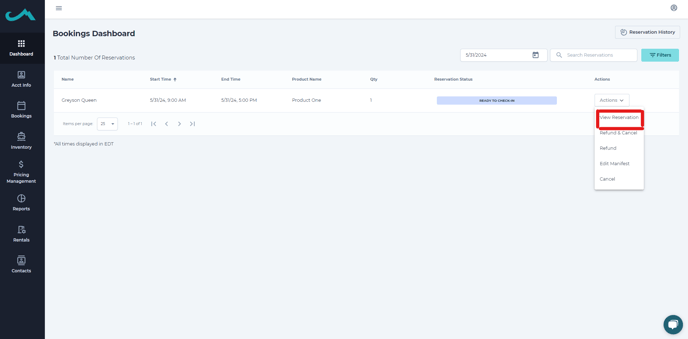
Step 1) Once signed in to your Admin account on the Web App, select "Actions" then "View Reservation" on the desired reservation.
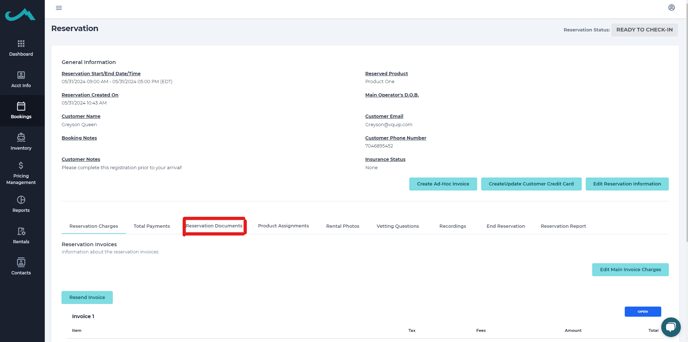
Step 2) Click on "Reservation Documents".
Step 3) Click on the pdf link on whichever document you need to review. The document file will open and you can scroll down to confirm if the document has been signed or not.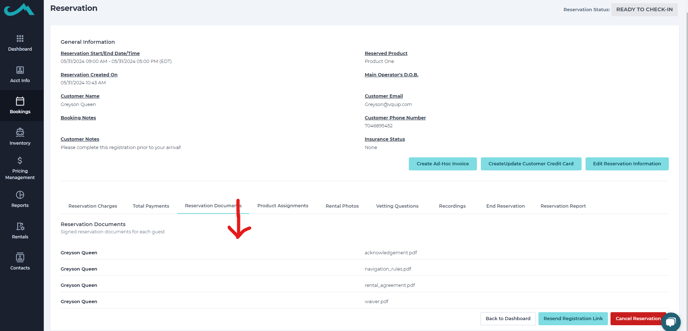
NOTE: Anyone who signs during check in will have their documents stored in the "Reservation Documents" section.