
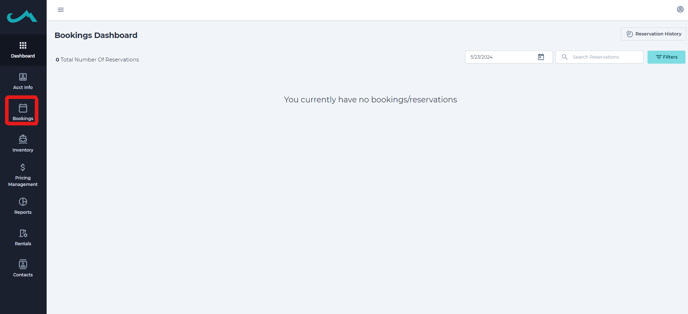
Step 1) Select the "Bookings" tab on the side of the screen.
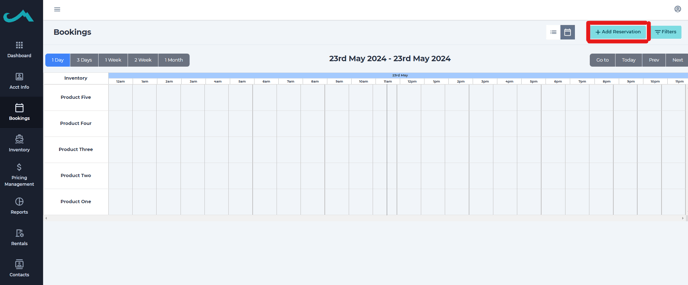
Step 2) Select "Add Reservation" in the top right corner.
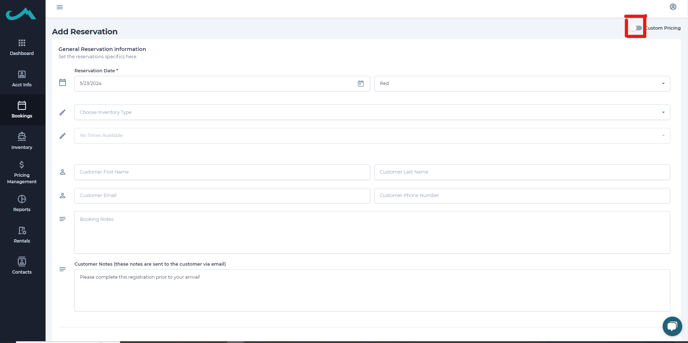
Step 3) Toggle on "Custom Pricing" in the top right corner.
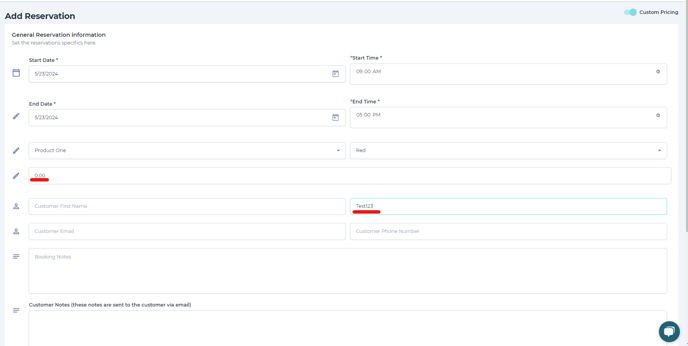
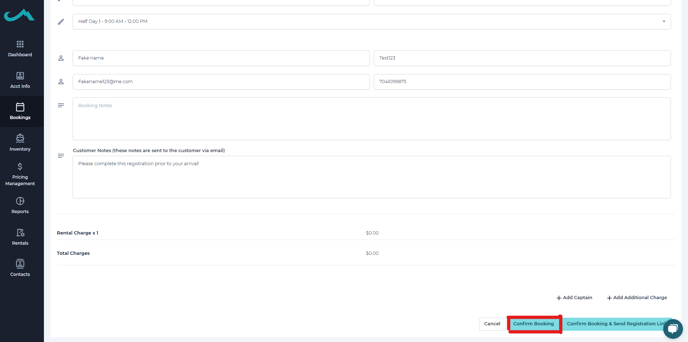
Step 4) Select the date, time, and product for the test reservation and $0.00 for the rental amount. It is important to note that the last name has to be "Test123" for ALL test reservations for data tracking purposes. This will make sure that these reservations are not counted toward your total reservations etc.
Also make sure you put your email in the email field if you would like to receive all of the notifications that the renter would also receive throughout the process.
Step 5) After completing all information needed select "Confirm Booking" at the bottom of the page. If you would like to see the registration link the customer would receive, you will want to select "Confirm Booking and Send Registration Link' option.
Just like that you have created a test reservation for your business!
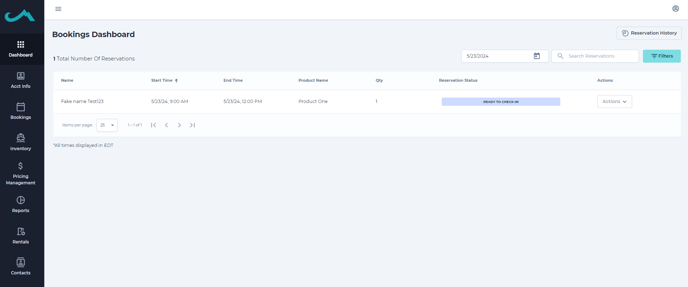
All that is left is to run through the test reservations through the mobile app!